
Silent Disco Setup Guide
Thanks for choosing us for your event! Your point of contact with Silent Disco Knox has already walked you through these steps for setup, but in case you need a refresher or have any unwanted surprises, this page should help explain it all. If not, please feel free to reach out to your Silent Disco Knox point of contact for any questions or problems you may have. Thanks again and enjoy your silent disco!
Setting Up Your Transmitter
Grab your transmitter box, and unzip the package to find your transmitter, power supply, and RCA to Aux cable .
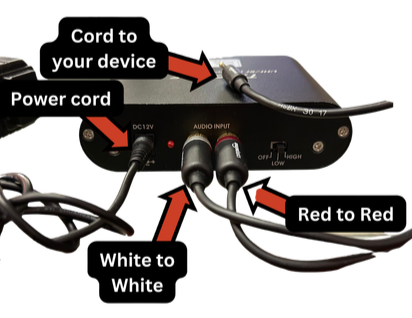
Insert the power supply into the transmitter in port labeled “DC12V.” (make sure it’s plugged into a reliable outlet)
Insert the red RCA cable into the red RCA port
Insert the other RCA cable into the white RCA port
Make sure the switch is set to “Low” for best signal quality
The back of your transmitter should look like the photo below.
Unfold the headphones and adjust them to your ears/head for comfort
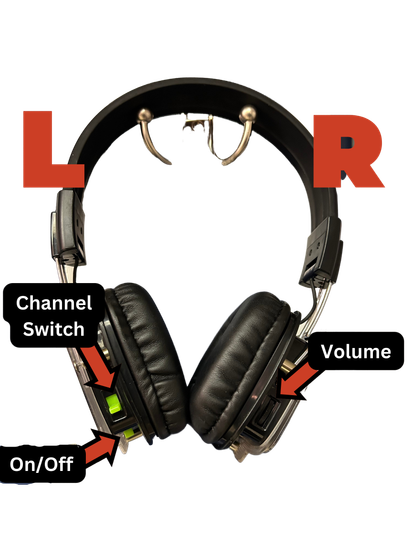
The “on/off” switch is located on the bottom of the left ear
The channel switcher (to change colors) is located on the back-side of the LEFT ear
The volume knob/scroll is on the back-side of the RIGHT ear PIC
*TIP* The volume scrolling is inverted when headphones are on your head. Turning the volume UP requires scrolling downwards, and turning the volume DOWN requires scrolling the volume upward
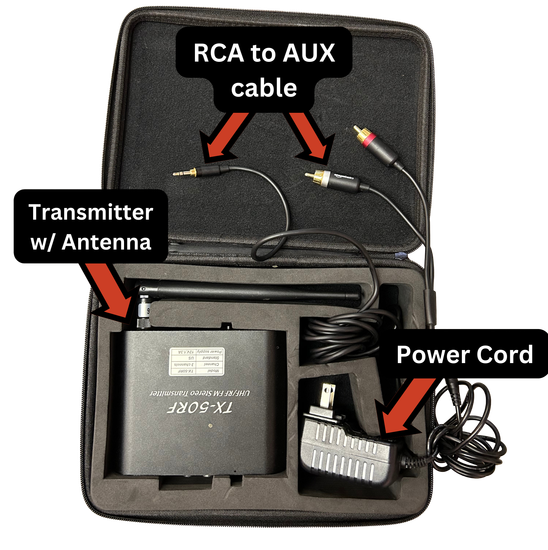
Next, Insert the aux cable (attached to the RCA cables) into your device’s headphone jack (your iPad, laptop, phone, etc.)
Turn your device’s volume all the way up
Set each transmitter to separate channels (1, 2, and 3) using the button next to the screen labeled “Channel” on the front of the transmitter.
Turn on your headphones, turn up the volume, and start dancing!
Using Your Silent Disco Headphones
Troubleshooting
Troubleshooting- Headphones
If headphones aren’t working, turn them off and back on again
9/10 times if someone’s headphones aren’t working, it’s because they turned them off instead of changing channels. No worries, it happens!
If you’re having volume issues, use your thumb to turn up (scroll down) or to turn down (scroll up). Please refer to the *TIP* under “Using Your Silent Disco Headphones”
Troubleshooting- Transmitters/Devices
Make sure all cables are securely input into the transmitters
Make sure your headphone cable (coming from the transmitter) is securely input into your headphone jack of your device
Make sure your power supply is plugged into a reliable outlet
Make sure each transmitter is on a different channel (1, 2, or 3)
Make sure your device’s volume is turned all the way up (your iPad, laptop, phone, etc.)
Spotify Best Practices for Silent Disco
Spotify is a music streaming app that lets you play millions of songs instantly using the internet. Think of it like a giant digital jukebox where you can:
Search for any song or artist
Create playlists
Control what plays next
DJ music in real time
For your silent disco, we provide iPads with Spotify Premium already installed and logged in, so you don’t need to create an account or pay for anything.
Spotify is great for silent discos because it allows you to:
- Play music continuously without ads
- Switch songs instantly
- Change the vibe on the fly
- DJ from a playlist or freestyle
- Crossfade songs so there’s no silence between tracks
- Download music ahead of time in case Wi-Fi is spotty
Each iPad controls one music channel, so every channel can have its own style or genre.
Getting Started on the iPad
Turn on the iPad.
Open the Spotify app (green circle with black sound waves).
Make sure Spotify is logged in.
- Login information is located on the back of each iPad case.
- This is especially important if you plan to use offline mode.
Finding or Sharing Your Playlist
If you already created a playlist on your own phone or device, you can easily pull it up on our iPad.
How to Share a Playlist Using a Spotify Code (Both devices must be connected to Wi-Fi.)
1. On your phone or device:
Open Spotify
Go to your playlist
Tap the three dots under the playlist title
Select “Show Spotify Code”
2. On the iPad:
Open Spotify
Tap Search
Tap the camera icon above the search bar
Scan the Spotify code from your phone
Your playlist will instantly open on the iPad.
How to DJ Using the Spotify Queue
The Queue is the most important DJ tool in Spotify.
Opening the Queue
1. Tap the currently playing song at the bottom of the screen.
2. Tap the three stacked lines icon in the bottom-right corner.
What You Can Do in the Queue
- Reorder songs by dragging them up or down using the three-line handle.
- Remove songs by swiping left on a song.
- Add songs quickly by swiping right on any song from a playlist or search results.
Using Crossfade
Crossfade blends one song into the next so there is no silence between tracks.
How to Turn On Crossfade
1. Go to Settings in Spotify.
2. Find Playback.
3. Turn on Crossfade.
4. Set it to 6–8 seconds.
Downloading Music for Offline Use
Wi-Fi issues are the most common problem at events. Downloading playlists in advance prevents interruptions.
How to Download a Playlist
1. Make sure the iPad is logged into Spotify and connected to Wi-Fi.
2. Open your playlist.
3. Toggle Download to ON.
4. Wait until all songs show as downloaded.
Important Notes About Offline Mode
- Spotify must remain logged in for offline playback to work.
- If you are logged out, downloaded music will not play.
- Login details are on the back of the iPad case.
Best Practices for Silent Disco DJs
- Keep Spotify open during use.
- Use the Queue instead of changing songs abruptly.
- Avoid force-closing the app.
- Download playlists before arriving at the venue.
- Assign one person per channel if possible.